
Project Mirage

Scroll to explore

There's More to Dune — Setup Guide

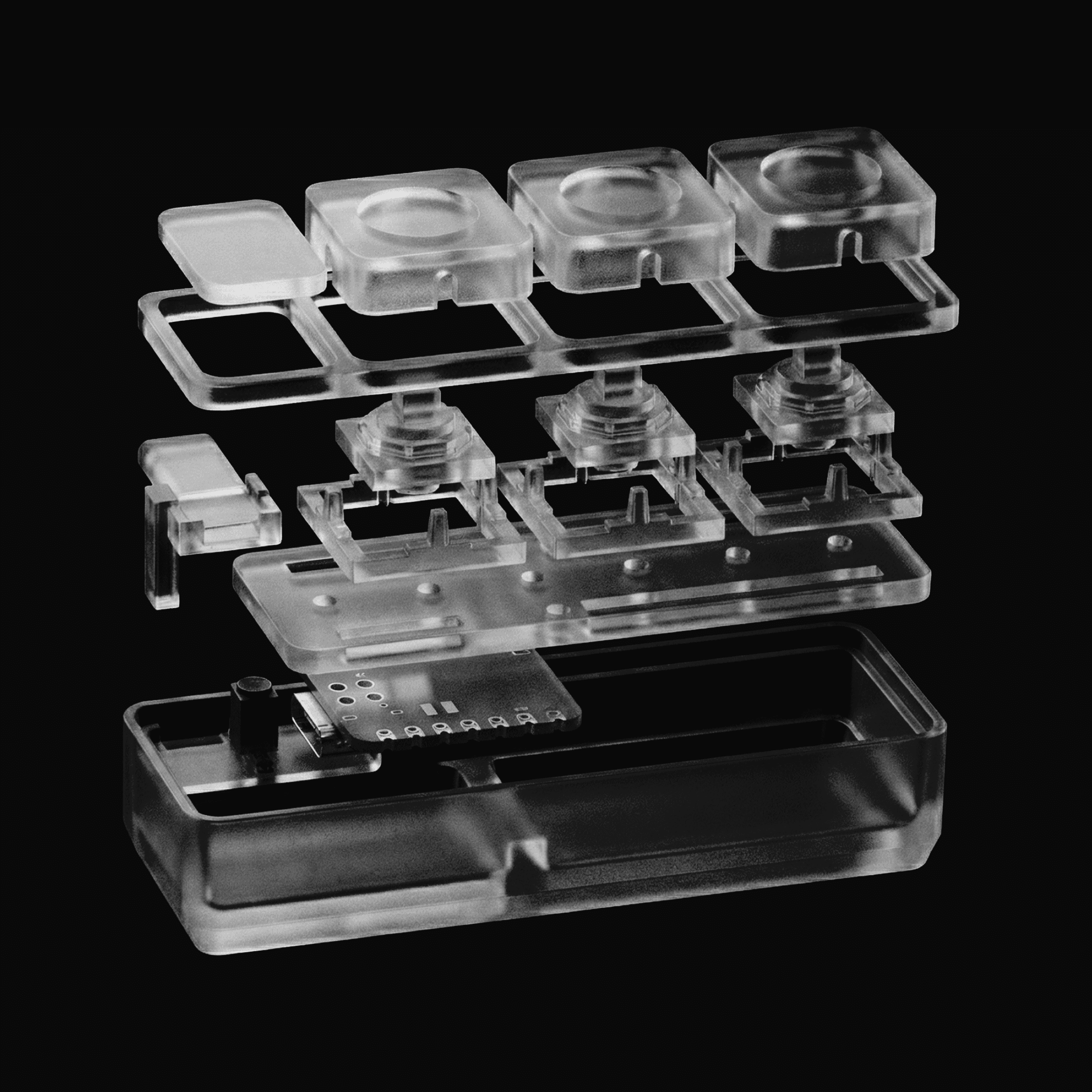
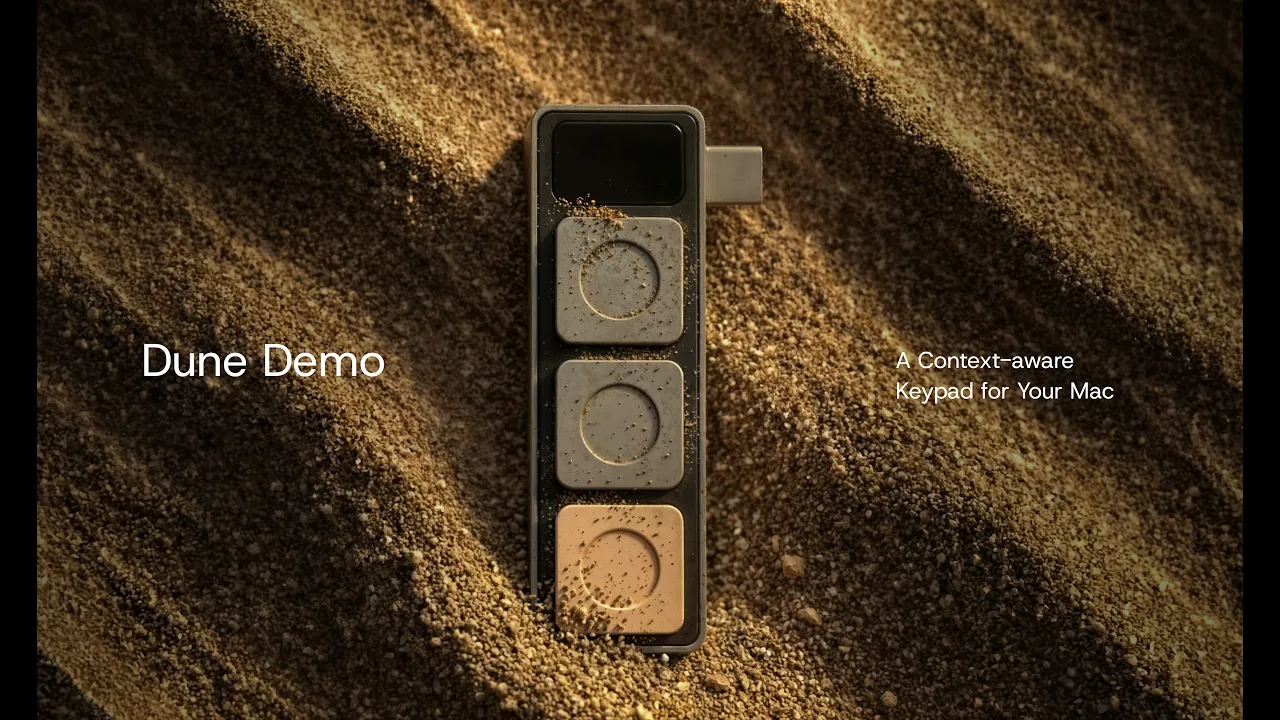
Dune is a Context Aware Keypad for Mac that reads which app is in the foreground and automatically changes what its 3 keys do based on what you're doing. We call it Dune because a sand dune is never one thing. It shifts, quietly and constantly, shaped by whatever surrounds it. That's what these three keys do. They observe what you're doing and become what you need, right then.

Important

When you first plug in Dune, macOS may show a dialog saying the Dune device can't be identified. Just click Quit. Dune will still work as expected.

You decide what your Dune does for you

Watch the demo to see Dune in action before setting it up.

Supported Applications

Dune's AI context layer automatically adapts to any application you're using. The shortcut set updates in real time without needing manual configuration.
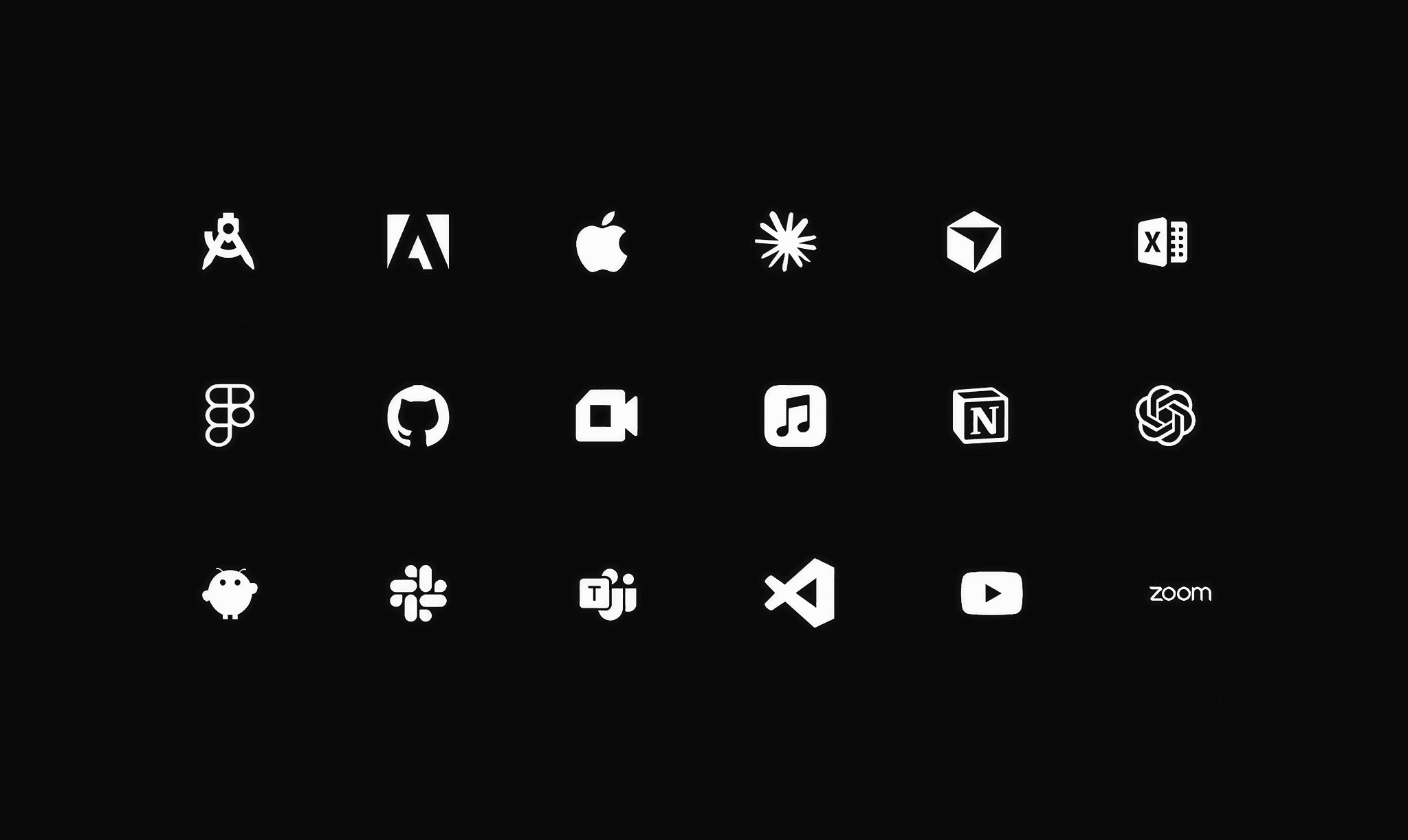
Key Functions

Dune's three keys adapt to context automatically. Here's what they do in each mode:

GitHub
  • Key 1 — Raise a PR
  • Key 2 — Approve a change
  • Key 3 — Reject a change
VS Code and Claude
Keys map to your most-used actions automatically based on context.
Openclaw — AI Agent Triggers
Trigger custom-built agents directly from your desk. An email assistant, a calendar agent, or any workflow you have built can be activated from the same three keys without switching context.
Dune syncs with your calendar and maps its keys to meeting controls automatically.
  • Key 1 — Join the call with one tap
  • Key 2 — Mic toggle (also brings the meeting window to the front automatically when you unmute)
  • Key 3 — Camera toggle
Dune detects which meeting platform you are on and updates its keys accordingly. No manual setup required.
Open the Dune app and assign any of the following to each key, per app:
  • Keyboard Macro — trigger any shortcut sequence with a single tap
  • URL — open any link the moment you need it
  • Script — run custom scripts to automate the workflows you do every day
Default shortcuts for Notion, Figma and Excel are pre-enabled.

Troubleshooting

  • Confirm your Mac is running macOS 15 (Sequoia) or later.
  • Try a different port on your Mac
  • Unplug and reconnect the device
  • Restart the Dune app
  • If the issue continues, restart your Mac with Dune connected
  • Open the Dune app and confirm permissions are approved for the apps you are using
  • Check that the Dune app is running in the background (look for the Dune icon in your menu bar)
  • Make sure the app you switched to is in the list of supported apps
  • Quit and relaunch the Dune app and then check again
  • Ensure the "Join notification before 2 minutes" setting is toggled on in Dune Calendar Settings
  • Confirm calendar access is approved in the Dune app
  • Make sure your meeting has a valid join link in your calendar (Zoom, Teams or Google Meet)
  • Check that the relevant meeting app permissions are approved
  • Open the Dune app and confirm the macro or URL is saved under the correct app profile
  • Make sure the correct app is in the foreground when you press the key
  • Re-enter and save the macro or URL again
  • Test the macro or URL outside of the Dune app to ensure it works as intended
  • Go to System Settings, then Privacy and Security, and check if the Dune app has been blocked. Click Open Anyway if prompted.
  • Re-download the app from the official link

Technical Specifications

Material

CNC‑machined anodized aluminum

Compatibility

macOS only

Connectivity

USB-C

Dimensions

40mm × 10mm × 10mm

Weight

50g

Power

USB‑C powered (no battery required)

Material

CNC‑machined anodized aluminum

Compatibility

macOS only

Connectivity

USB-C

Dimensions

40mm × 10mm × 10mm

Weight

50g

Power

USB‑C powered (no battery required)

Need Help?

For bug reports, feature requests, or any questions, write to us at

Build By Project Mirage

A team of designers, developers, and engineers reimagining the next generation of human-computer interaction.